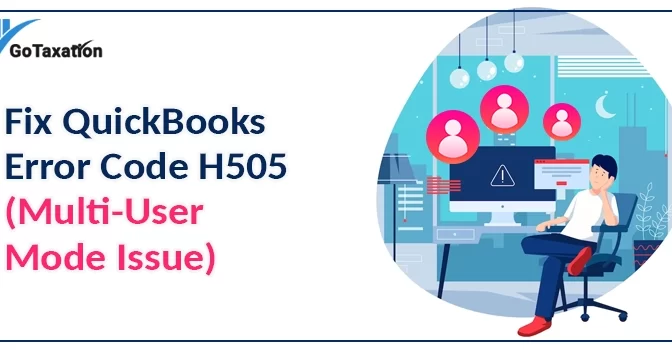
QuickBooks Error H505 appears when a workstation fails to communicate with the server hosting the company file. This error mainly occurs while switching to multi-user mode or while opening a shared company file over the network. In most cases, the problem is related to incorrect hosting settings, blocked firewall ports, damaged network files, or inactive QuickBooks services.
This guide explains the exact causes of the H505 error and provides tested troubleshooting methods to restore multi-user access safely.
What Causes QuickBooks Error H505?
QuickBooks may fail to connect to the server due to several network or configuration-related issues.
Below are the most common reasons:
- Incorrect Hosting Configuration
Only the server computer should host company files in multi-user mode. If hosting is enabled on a workstation, QuickBooks fails to create proper communication with the server.
- Firewall or Security Software Blocking
Windows Firewall or third-party antivirus software may block the ports required by QuickBooks Database Server Manager.
- Damaged or Missing .ND File
QuickBooks uses a .ND file to locate the company file over the network. If the File becomes damaged, workstations may lose access to the server.
- QuickBooks Services Not Running
Background services such as QBDBMgrN and QBCFMonitorService must run continuously on the server system.
Signs of QuickBooks Multi-User Error H505
When QuickBooks multi-user error H505 comes, it usually gives warning signs before completely blocking your workflow. Here is how you can easily identify if your system is facing this network glitch:
- QuickBooks fails to switch to multi-user environment.
- The company file does not open on workstations.
- The application freezes while accessing shared files.
- Error H505 appears on the screen.
- QuickBooks crashes during startup.
What to Do Before Resolving QB Error Code H505?
Before performing advanced troubleshooting:
- Save a local backup copy of your company files to prevent data loss during network resets.
- Verify that your QuickBooks Desktop is updated to the latest release version.
- Ensure the QuickBooks Database Server Manager is installed and ready on your server machine.
- Ask all users to log out of QuickBooks temporarily.
Top 5 Proven Solutions to Fix QuickBooks Error Code H505
Follow the simple and effective solutions given below to address error code H505 in QuickBooks Desktop.
Solution 1. Disable Hosting on Workstations
If hosting is enabled on multiple computers, QuickBooks may become confused about which system is acting as the server. Only the dedicated server computer should host company files.
Steps to disable hosting:
- Open your QuickBooks on any workstation where you face H505.
- Go to the File menu at the top left and click on the Utilities tab.
- If you see the Host Multi-User Access option, don’t select it. Move on to the next workstation. This one is not causing the QB error h505.
- If you see Stop Hosting Multi-User Access is an option, select it.
- Now, you have to repeat these steps for all workstations where you get error H505.
Once all regular workstations are set up correctly, check your main server computer. Go to File, click on Utilities on the server, and ensure that Host Multi-User Access is the active setting.
Solution 2. Check Windows Firewall Settings
Sometimes your security firewall blocks QuickBooks from communicating with the server, which causes an error message H505 in QuickBooks.
Follow these easy steps to fix it:
- Open Control Panel, and click on Windows Defender Firewall.
- Choose Allow an app or feature through Windows Defender Firewall.
- Click Change Settings and ensure QuickBooks is checked for both Public and Private networks.
- If QuickBooks is not listed, click Allow another app, browse to your QuickBooks folder, and select the application file.
- Once added, ensure the public option is checked and hit OK.
- Restart QuickBooks and try to open the data file again to check if the error message H505 in QuickBooks is resolved.
- If it still persists, move to the next solution to fix the error code H505.
Solution 3. Reset Your Network Data (.ND) Files
QuickBooks uses .ND file to manage connection links between your workstations and the server. If this file gets damaged, you will get a QuickBooks error H505.
Follow these steps to reset it:
- Go to your main server computer and open the folder where your QuickBooks company files are stored.
- Look for a file that shares the exact name as your company file but has .nd at the end of its name.
- Right-click that file and select Rename. Type .old at the end of the file name.
- Go back to your workstation and open QuickBooks. The software will automatically create a new network file to restore your shared access.
Solution 4. Run QuickBooks Database Server Manager
If your connection is still blocked, use the QBDBMgrN to automatically scan your network setup and repair communication errors.
Follow these steps to repair it:
- Open the QuickBooks Tool Hub on your server computer and click on the Network Issues tab.
- Click the QuickBooks Database Server Manager button from the menu.
- Find your company file folder inside the tool window. To find a specific File, click Browse to choose your folder, then click Start Scan.
- Wait for the tool to finish scanning. It will automatically detect and fix background network bugs and firewall path conflicts.
- Once the process shows a success message, close the tool, open QuickBooks on your workstations, and change your settings to multi-user mode.
Solution 5. Verify Folder Permissions for the Company File
QuickBooks software require full permission to access the shared company file folder. If Windows folder permissions are blocked, QuickBooks may fail to connect to the server and show error H505.
Steps to verify folder permissions:
- Go to the server computer where the QuickBooks company file is stored.
- Open the folder containing your company file.
- Click right in the folder and select Properties.
- Open the Security tab and click Edit.
- Select the Windows user account used for QuickBooks access.
- Ensure the following permissions are allowed:
- Full Control
- Modify
- Read
- Write
- Click Apply, then select Ok.
- Open QuickBooks again and try accessing the company file in multi-user mode.
Tips to Prevent QuickBooks Error H505
You can reduce the chances of QuickBooks Error H505 occurring by following these preventive measures:
- Keep your QuickBooks Desktop updated to the latest release version.
- Enable hosting only on the server computer.
- Regularly update Windows Firewall and antivirus settings.
- Store the company file in a stable shared network folder.
- Run QuickBooks Database Server Manager after changing network settings.
- Verify that QuickBooks services such as QBDBMgrN remain active on the server.
- Create data backups of your company file to avoid data loss during network failures.
To Wrap Up
QuickBooks Error H505 is a network-related issue that prevents workstations from accessing the company file in multi-user mode. You can fix the error by correcting hosting settings, repairing damaged network files, updating firewall permissions, and verifying server access. Once the connection is restored, users are able to open the data file and continue working in multi-user mode normally.
To avoid similar issues in the future, keep QuickBooks Desktop updated, maintain proper server configuration, and regularly monitor network and firewall settings.
Frequently Asked Questions
- What does QuickBooks Error H505 mean?
QuickBooks Error H505 indicates that the workstation cannot connect to the server computer hosting the company file in multi-user mode.
- Can firewall settings trigger Error H505?
Yes. Windows Firewall or third-party antivirus software may block QuickBooks network communication and prevent workstations from accessing the company file.
- Does QuickBooks Database Server Manager help fix H505?
Yes. QuickBooks Database Server Manager scans the company file folder and repairs network-related communication problems in multi-user mode.
- Can multiple systems host QuickBooks company files?
No. Only the dedicated server computer should host company files. Enabling hosting on multiple systems may trigger H-series errors like H505.