
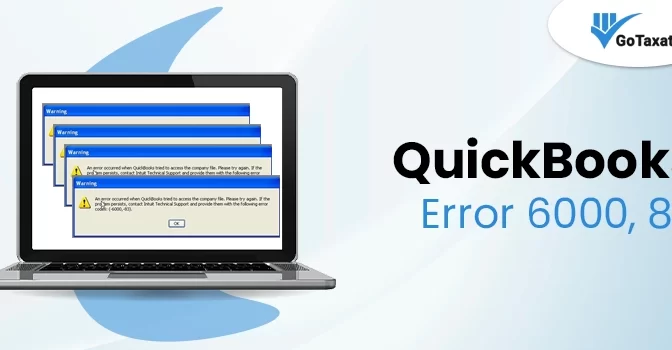
The QuickBooks Error 6000, 83 mainly occurs when QuickBooks tries to access the company file but faces a communication or permission issue. If you are currently dealing with a QuickBooks company file error 6000 83, you know how quickly it can disrupt your workflow.
This blog post helps you understand why this is happening and shows you exactly how to fix QuickBooks error 6000 83 smoothly.
What Causes QuickBooks Company File Error 6000-83?
QuickBooks Error code 6000, 83 usually occurs when the software cannot access the company file due to damaged files, incorrect file permissions, network disruptions, or hosting enabled on multiple workstations.
Here are the common causes of this fatal error code:
- Corrupted Company File: If your data or the shared folder is damaged, QuickBooks cannot read the file.
- Lack of Folder Permissions: If the user doesn’t have full control over the folder where the file is stored, then it shows access denied.
- Firewall Blocks: Your security software or Windows Firewall may be blocking the QuickBooks connection error 6000 83.
- Hosting Conflicts: If your multi-user hosting is mistakenly turned on for workstations instead of just the server, it creates a system clash.
- Invalid File Names: Using special characters or having a file name that is too long can trigger a QB error.
- Network Issues: Damaged .ND or .TLG files prevent QuickBooks from communicating properly over your network.
How to Fix QB Error 6000, 83 Based on Your Situation?
To solve this error efficiently, you need to choose the scenario below that matches what you were doing when the error appeared on your screen:
Scenario 1 – I was creating a backup.
If you are facing a QB file backup error 6000 83, it means there is a communication glitch with your server or a permissions issue.
- Close QuickBooks on your server.
- Open your C: Drive and create a new folder named QB Test.
- Save your backup file to this new folder on your local drive instead of the server.
- Restore the file from this folder. If it works, rename your old company file so you don’t use it by mistake and start using this new one.
Now, take a full backup of your company file. When QuickBooks asks where you want to save your backup file, save it to the folder you just created on your C: drive.
If you don’t see the error code, then use your backup as your main company file. If you still face the QuickBooks Enterprise error 6000 83, go to the server setup section.
Read More – QuickBooks Error 6000 80
Scenario 2 – I was Restoring My Company File
A common cause for QuickBooks Error code 6000, 83 during restoration is an incorrect filename.
Solution 1. Verify the Backup File Name
- Press the Windows Start button and type File Explorer to open it.
- Locate the open backup file folder.
- Right-click the File and choose Rename.
- Delete any symbols, special characters, or spaces that may trigger the error code.
If the error still persists, move to the next solution.
Solution 2. Use a Portable Company File (.QBM)
If your regular backup file (.QBB) isn’t working, then creating a Portable Company File is your best way. It is a smaller version of your data that doesn’t include letters, logos, or images. This makes it much easier to restore without triggering a QuickBooks Desktop Error 6000 83.
Step 1. Create the Portable File
- Open QuickBooks on the computer where your company file still works.
- Go to the File menu and select Create Backup.
- Choose Portable Company File and click Next.
- Give the File a simple name, no special characters, and save it to your desktop.
Step 2. Restore the Portable File
- Move that new File to the computer where you were having trouble.
- In QuickBooks, go to File and select Open or Restore Company.
- Choose Restore a portable file and click Next.
- Select your desktop file and follow the prompts to restore it.
Solution 3. Restore Your Backup from the Local Hard Drive
If you are still seeing QuickBooks error code 6000 83, to fix this, you can bypass the network entirely by moving the File to your own computer’s C: drive to restore it.
- Find your backup file on your server or network drive. Right-click it and select Copy.
- Go to This PC or My Computer, open your C: Drive, and paste the File there.
- Open QuickBooks and go to File> Open or Restore Company.
- To restore in QuickBooks, choose Restore a backup copy and click Next.
- When asked for the location, browse to your C: drive instead of the server.
- Once the File opens successfully on your local computer, the QuickBooks desktop error 6000 83 is fixed. You can then save a new backup and move it back to your server or original shared folder.
Scenario 3 – If Your Company File is on a Linux Server
Running QuickBooks Enterprise on a Linux server is great for performance, but it can make QuickBooks connection error 6000 83 a bit more technical to solve. Because Linux is case-sensitive and relies on specific network mapping, you need to ensure your Windows workstations know exactly how to connect to the Linux server.
Step 1. Configure the Linux Database Manager
- Open the Linux Database Server Manager on your server.
- Check the Initord.conf file to ensure the directory containing your company file is correctly listed and configured.
- Restart QuickBooks on your host computers to refresh the connection.
If the File still won’t open, move to the next step to fix the QuickBooks Error -6000, -83.
Step 2. Configure your Host File
Ping the server and get your server IP address:
- On a Windows computer, click Start, type CMD, and press Enter.
- Type ping (Name of your Linux Server) and hit Enter.
- Write down the IP Address and the Server Name that appear.
In the next step, you need to edit the host files. Ensure all the computers have the correct IP address and the Linux server name. You can start with the server where you see QuickBooks Error 6000, 83.
- First, quit QuickBooks from all the computers connected to your network.
- Go to the file menu and choose Quit QuickBooks Desktop.
- Afterward, click on the Windows Start menu and type File Explorer to open it.
- Choose My Computer from the navigation bar and open your C: drive, then open your Windows folder.
- Locate the System32 folder. Open the Drivers folder and then the ETC folder.
- Right-click the File called C:\Windows\System32\drivers\etc\hosts. Select Open with and then Notepad.
- Scroll to the bottom of the File and add the Linux server IP address to the end of the text.
- Once done, press the Tab key and add your Linux server name.
- Remember, Linux system files are case sensitive. Ensure you enter names with the correct case to avoid further issues.
- Go to File, click on Save, close Notepad, and try opening your company file again.
Hopefully, the above solution has helped you fix the error 6000 83 in QuickBooks without losing your business-sensitive data.
Final Thoughts!
Hopefully, this blog post will help you resolve the QuickBooks error 6000, 83 easily. By following the above-mentioned methods, you can easily access your company file and get back to your accounting tasks without further delay.
To keep your QuickBooks Desktop error-free, remember to keep your software updated, use simple filenames without special characters, and ensure only your server is set to host multi-user access.
Frequently Asked Questions
Question 1 – How to fix QuickBooks error 6000 83?
To fix this efficiently, you can run the tool hub or create a new portable file for accessing the company files.
Question 2 – What does QB Error code 6000, 83 mean?
QuickBooks can not open the company file because the File is corrupted, or the hosting is enabled on multiple workstations.
Question 3 – What causes QuickBooks error 6000 83 Windows 11?
It is caused by connectivity issues where QuickBooks cannot reach the company file, often due to improper hosting settings, damaged network data, or firewall restrictions.
Question 4 – How do I use the QuickBooks Tool Hub to fix this?
First, download and open the QuickBooks Tool Hub, select Company File Issues, and run the QuickBooks File Doctor to automatically diagnose and repair the file access issue.
Question 5 – What should I do if the error persists after trying standard fixes?
You must verify that your Windows user permissions allow full read or write access to the company file folder, or try restoring a backup of the company file to a new location. By doing that, you can fix the error 6000 83 in QuickBooks Desktop.