
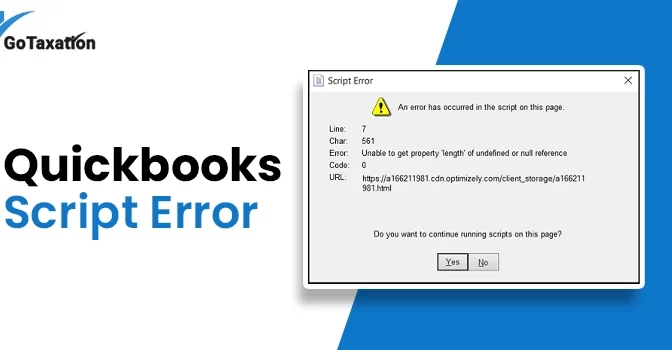
Have you ever faced a QuickBooks Script Error message while handling your company file? This is one of the most frequently occurring technical errors when the program is unable to communicate with any web page or online service. These interruptions can disrupt your business productivity, so it’s better to fix this error immediately.
In this quick guide, we will learn how to resolve QB script errors so you can get back to your accounting without further delays.
What is QuickBooks Script Error?
A QuickBooks script error code 0 is a technical glitch that occurs when the software fails to connect with an online server or load a webpage correctly. Because QuickBooks uses browser-based components to display your dashboard and tools, any interruption in that connection triggers a “script” failure.
Here is what you need to know about this error:
- When QuickBooks can not “read” the web code needed to display specific features or windows.
- It is caused by outdated browser settings, high security levels, or a full “cache” that can block the software.
- You will see this error when you open the program or when trying to sync a bank feed or transaction.
Key Symptoms of a Script Error in QuickBooks
Identifying the QuickBooks desktop script error early allows you to fix it before it disrupts your workflow. If you are experiencing any of the following symptoms in QuickBooks Desktop, you are dealing with a script-related conflict:
- Frequent script error messages are displayed after opening a function or transaction.
- QuickBooks becomes unresponsive or crashes and restarts unexpectedly.
- Significant delays when clicking buttons or trying to move between different screens.
- Slow internet speeds within the software, and constantly process time-out warnings.
- A noticeable lag where your keyboard and mouse commands are not processed immediately.
What are the Causes Behind the QB Script Error Code 0?
There are several factors that can trigger a Script Error when I Open function or transaction. Understanding these causes is the first step toward a permanent fix. The most common reasons include:
- When QuickBooks script processing tools or functionalities are disabled.
- Your browser script debugging feature is enabled, which forces error notifications to pop up.
- Corruption within your Windows system files may have caused this error code 0.
- Recent system updates or setting changes were not correctly saved or verified.
- A mismatch between your downloaded internet data and the script software requirements.
Easy Solutions to Resolve QuickBooks Script Error Line 0
If you are seeing a Script error after opening a function, follow these troubleshooting steps to clear the glitch:
Solution 1. Disable Script Debugging in Windows
This is one of the most effective solutions to stop QuickBooks script error line 0 from popping up.
- Open the Internet Options window via the Control Panel.
- Click on the Advanced tab.
- Scroll down to the Browsing section in the list.
- Check the boxes for:
- Disable script debugging (Internet Explorer)
- Disable script debugging (Other)
- Uncheck the box that says Display a notification about every script error.
- Click Apply at the bottom and then OK.
Solution 2. Clear Browser Cache and Cookies
If browser cookies, history, or temporary Internet files are causing the script error 0, clearing the cache data will resolve the problem efficiently.
- Open your Internet Explorer and click on Internet Options.
- Under the General tab, look for the Browsing history section.
- Click Delete.
- Select Temporary Internet files, Cookies, and History.
- Click Delete, then OK.
- This will help you resolve the script error in QuickBooks without any further delay.
Solution 3. Add Intuit as a Trusted Site in Internet Explorer
QuickBooks uses Internet Explorer to open the services. Ensure you have made Internet Explorer the default browser on your system.
- Open the Control Panel and select Internet Options.
- Navigate to the Security tab and click on Trusted Sites.
- Click the Sites button.
- In the “Add this website to the zone” field, type intuit.com and click Add.
- Uncheck the box for “Require server verification (https:) for all sites in this zone.”
- Click Close, then OK. Now, check if the QB Script Error is resolved.
Solution 4. Reset Internet Explorer to Default Settings
If the script error continues, resetting the browser to its factory state often fixes the configuration issues.
- Go to Internet Options and select the Advanced tab.
- Click the Reset button at the bottom.
- In the confirmation box, click Reset again.
- Click Apply and OK to finish.
Solution 5. Disable Browser Add-ons
Sometimes, third-party extensions can interfere with how QuickBooks processes web data.
- Open Internet Explorer and click the Tools gear icon.
- Select Manage Add-ons.
- Locate the add-ons and click Disable for each one.
- Restart QuickBooks to see if the script error in QB persists.
Solution 6. Reactivate Internet Explorer 11 on Windows 10
If the internal browser is glitching, refreshing it through Windows settings can resolve the QB script errors.
- Press Windows + R and enter Control Panel to open it.
- Go to Programs and Features and click Turn Windows features on or off.
- Find Internet Explorer 11, uncheck the box, click OK, and restart your computer.
- After restarting, go back to the same menu, re-check the box for Internet Explorer 11, and click OK.
- Restart your PC one last time and open QuickBooks to check if the error has been fixed.
Solution 7. Clear SSL State Certificates
Sometimes, the old security connection between QuickBooks and the web server gets stuck. Clearing the SSL state refreshes this connection without deleting your browsing history.
- Open the Control Panel and click on Internet Options.
- Navigate to the Content tab at the top.
- Click the Clear SSL State button.
- You will receive a confirmation message saying “The SSL cache was successfully cleared.”
- Click OK to save the changes and restart QuickBooks.
The Bottom Line!
These effective solutions help you fix the QuickBooks script error easily and allow you to get your accounting back on track. By identifying the root causes and key symptoms of the error code 0, you can implement the right troubleshooting steps.
Whether the issue stems from outdated browser data or restrictive security settings, following this guide ensures a smooth and error-free workflow.
Frequently Asked Questions
- What is a script error in QuickBooks?
It is a browser-related issue where QuickBooks Desktop fails to load or execute a web page. It usually occurs due to outdated Windows Internet settings or conflicting browser files.
- How do I fix the QuickBooks script error code 0?
You can fix it by adding Intuit as a trusted site, clearing your browser cache, and disabling script debugging within your system’s Internet Options.
- Can I still use QuickBooks if the error isn’t fixed?
Yes, the software will still function, but the pop-up will continue to interrupt your workflow. If standard fixes don’t work, you can check your Windows Firewall or an outdated QuickBooks update.
- What causes the QuickBooks Script Error?
It is primarily caused by outdated Internet Explorer settings, corrupted browser cache, or security blocks that prevent QuickBooks from loading its internal web-based tools.
- Do I have to stop my work when a script error message pops up?
No, you don’t need to stop your work entirely. While the pop-up is an interruption, applying the right troubleshooting methods will resolve the glitch and allow you to resume your work smoothly.