
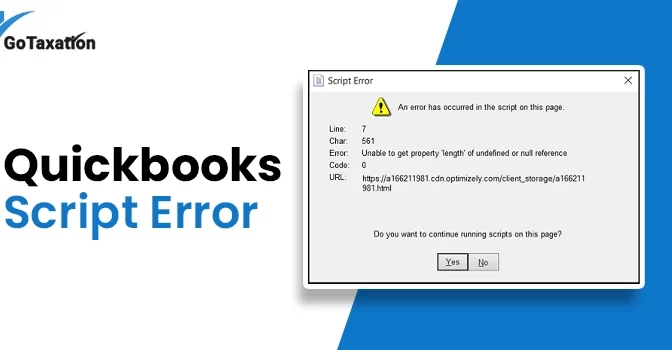
The QuickBooks Script Error usually triggers when the software internal browser engine fails to load a web page. This often appears as a pop-up message stating, “An error has occurred in the script on this page.” To fix the problem, you can add Intuit as a Trusted Site or clear your browser history.
This guide provides step-by-step methods to fix browser settings and restore full functionality to your QuickBooks Desktop. For additional help, you can connect with our certified experts.
What Causes the Script Error in QuickBooks?
If you are facing a Script Error when I Open function or transaction in QuickBooks. These errors typically occur during online functions like payroll, banking, or software updates. To address this issue permanently, you must identify the root causes of the problem first.
Have a look at the common reasons behind a QuickBooks script error code 0, including:
- System Glitches: Your workstation may be facing a virus attack or a malware conflict that interferes with QuickBooks operations.
- Configuration Conflicts: This can be caused by unnecessary changes to scripts, disabled script processing, or a Windows Firewall blocking the software’s connection.
- Data Corruption: Specific QuickBooks files or internal data components are damaged or corrupted.
- Browser & OS Issues: If your browser is full of cache, has a damaged “Script Debugging” feature, or corrupted Windows system files.
7 Methods to Fix the Script Error in QuickBooks
Now, you have understood the possible causes of script error in QuickBooks Desktop. Now, start troubleshooting the error to resume your business operations. Look at the simple solutions given below that help you fix the error:
Method 1. Add Intuit as a Trusted Site
QuickBooks uses Windows Internet settings for web features. Adding Intuit to your trusted sites can resolve the conflict.
- Open the Windows Start menu, search for Internet Options, and press Enter.
- Go to the Security tab, click Trusted Sites, then click Sites.
- Click on the Sites button and add intuit.com and quickbooks.com as a trusted website.
- Uncheck “Require server verification” and ensure “Enable Protected Mode” is unchecked. Click OK.
- Try to run the application. If you still see the same error, then move to the next step.
Method 2. Delete Internet Explorer Cache
QuickBooks uses the Internet Explorer engine to load data, but corrupted temporary files often cause a QuickBooks desktop script error.
- Open Internet Options from the Start menu.
- Under the General tab, find the Browsing history section and click Delete.
- Check Temporary Internet files, Cookies, and History, then click Delete.
- You can also press CTRL + Shift + Delete while in an Internet Explorer window to open the same menu.
- Close all programs, open QuickBooks, and check if the Script error is resolved.
Method 3. Set Internet Explorer as the Default Web Browser
QuickBooks relies on the Internet Explorer engine to function. Ensure it is configured correctly.
- In Internet Options, go to the Programs tab.
- Click the link to “Make Internet Explorer the default browser.”
- Click Apply and then OK to save your settings.
- Now, open the QuickBooks software. If the script error still appears, move to the next solution.
Method 4. Disable the Script Debugging
This is the most effective method; it stops the error from triggering every time you open a new window.
- Go to the Advanced tab in Internet Options.
- Scroll down the list until you find the Browsing section.
- Under the Browsing section, check “Disable script debugging (Internet Explorer)” and “Disable script debugging (Other).”
- Uncheck “Display a notification about every script error.” Click OK.
- Once done, restart your computer to see the changes that will resolve the QuickBooks script error line 0.
Method 5. Turn Off Internet Explorer Add-ons
Sometimes, third-party browser extensions or toolbars also conflict with QuickBooks and cause scripts to crash.
- In Internet Options, go to the Programs tab and click Manage add-ons.
- Select non-essential add-ons and click Disable.
- Click Close, then click OK to exit the Internet Options menu.
- Reopen QuickBooks and perform the task to see if the script error in QuickBooks is resolved.
Method 6. Clear the SSL Certificate State
Clearing this state can instantly resolve security-related script errors. Here’s how to perform:
- Open Internet Options and navigate to the Content tab located at the top of the window.
- Look for the Certificates section and click the Clear SSL State button.
- A small notification will appear saying, “The SSL cache was successfully cleared,” and click OK.
- Click OK at the bottom of the Internet Options window to close it.
- To check if the QB Script Error Code 0 is fixed, open the QBDT and try the task again.
Method 7. Turn Off Script Error Notifications
By turning off the script error notifications, you can prevent workflow interruptions.
- Open the Internet Options and click on the Advanced tab at the top right of the window.
- Scroll down to the Browsing section and find the option labelled “Display a notification about every script error.”
- Uncheck the box to stop the pop-ups from appearing.
- To save the new changes, click on Apply and then OK to confirm the new settings.
- Relaunch QuickBooks to check if the script error in QB is resolved.
In conclusion!
Hopefully, now you are able to address the QuickBooks Script Error by implementing the above effective methods. You can save your valuable time by applying the correct troubleshooting steps and ensuring the best QuickBooks experience. If you still need further help, contact our experts to help you out with this problem.
Frequently Asked Questions (FAQs)
What is a QB script error?
This is a browser-related issue that occurs when QuickBooks Desktop fails to load a web page properly.
How do I fix the Script Error in QuickBooks Desktop?
To fix a script error in QuickBooks Desktop, you can add Intuit as a trusted website in Windows Internet Options, clear the SSL state, and disable script debugging.
What to do if the QB script error is not fixed?
At such times, you can connect with our expert team for getting instant attention to the problem.
What causes the QuickBooks script error?
A QuickBooks script error is primarily caused by issues with Internet Explorer settings.
Do I have to stop my work when a script error message pops up?
No, you don’t need to stop your work entirely when a script error message pops up. By applying the troubleshooting methods, you can resume your work.