
Oct 12, 2026 |
Matthew Thompson |
Read time :05 MIN
Uninstalling accounting software can feel risky, especially when your business depends on years of customer records, invoices, payments, payroll information, and financial reports. The good news is that removing the Sage 50 program from a computer does not normally mean removing the company data stored separately.
With the right preparation, you can Uninstall and Reinstall Sage 50 Without Losing Data and get back to work with your existing company information. The key is to create a reliable backup, identify the correct data location, install the appropriate Sage 50 version and verify everything before deleting anything permanently.
Yes. In most situations, uninstalling Sage 50 removes the application and related program components, not the company data itself. However, data can be lost if the company folder is manually deleted, a backup is incomplete or the wrong data is overwritten during reinstallation.
Your company data is generally stored separately from the Sage 50 program files. Uninstalling the application usually leaves those company files in their existing location.
Normally, no. However, never assume your data is safe without checking its location and creating a backup first.
Data may be at risk if you delete the wrong folder, restore an outdated backup, overwrite the current company data, or move files without understanding the Sage data structure.
A backup gives you a recovery option if something unexpected happens. Even if the uninstall process is straightforward, having a verified backup is the safest approach.
Preparation is the most important part of the process. Before you remove the software, spend a few minutes protecting your business records.
Open Sage 50 and make sure to back up the company files currently. Store this backup in a safe place, such as an external hard drive or a cloud-based server. Do not store your backup on the machine you are going to edit.
A backup is useful only if it can actually be restored. If possible, test the backup using a suitable environment before uninstalling Sage 50.
Note the exact folder where your company data is stored. This is particularly important if you use a network or shared environment.
Write down the Sage 50 edition, version, release, and other product information. Installing a different or incompatible version can create problems when opening existing data.
Keep your product and activation details available. Depending on your Sage 50 edition and licensing arrangement, you may need this information after reinstalling.
If Sage 50 is used on multiple computers, make sure everyone has closed the application before uninstalling or changing the installation.
For network installations, determine which computer acts as the server and where the shared company data is located. Do not uninstall the server installation until you understand how the workstations connect to it.
Understanding the difference between the application and your company data can prevent accidental deletion.
You can generally find the active company data location from within Sage 50 or by checking the company information and configuration. Record the complete path before making changes.
The program files consist of the software required to run Sage 50 while company data consists of your accounting files. Both have different uses and should be kept separate from each other.
In case you operate many companies, look at the name of the company, recent modification date of the folder, and the content of the folder. Do not choose a folder just because it sounds familiar to you.
The safest approach is to use Sage 50’s built-in backup functionality rather than manually selecting individual files. Keep the backup together with any necessary supporting documentation.
Once your backup is secure, you can remove the existing installation.
Exit Sage 50 on the computer and ensure no other user is accessing the company. Network installations may also have Sage-related services that should remain properly configured.
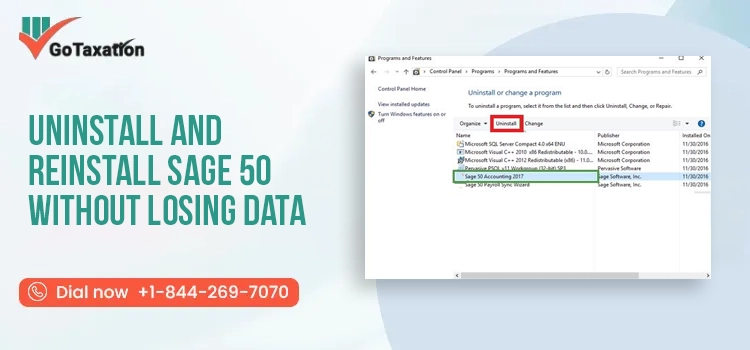
In Windows, open the Installed Apps or Apps and Features area. Locate the Sage 50 installation listed on the computer.
If more than one Sage product or version appears, confirm which installation you intend to remove before proceeding.
Follow the Windows and Sage prompts to complete the removal. Avoid manually deleting program folders while the uninstall process is running.
This is one of the most important precautions. Leave the company data folder and your backup untouched unless you are absolutely certain they are no longer needed.
Restart Windows after uninstalling Sage 50. This can help clear temporary files and complete changes made during the removal process.
After the old installation has been removed, you can install the appropriate version again. If you need additional guidance during the installation process, follow our Sage 50 installation and setup guide to configure the software correctly.
Use the appropriate official installation source and obtain the version that matches your existing company data and licensing requirements.
Whenever possible, install the same or compatible Sage 50 version. If you are unsure whether you need an update or a full upgrade, see our guide to Sage 50 update vs. upgrade.
Confirm that your Windows version, available storage, network configuration and other system requirements are compatible with the Sage 50 release you plan to install.
Launch the installer and follow the on-screen instructions. If Windows asks for permission to make changes, verify that you are running the legitimate Sage installation.
Select the installation option that matches your setup, such as a standalone computer or a network installation.
For a single-user setup, install the software locally and then open or restore your company data from the appropriate location.
Network installations require additional configuration. The server and workstations must be set up correctly so users can access the shared company data.
If users cannot access the company after reinstallation, review our guide on Sage 50 multi-user mode for help with server connectivity, permissions, and workstation access.
Enter the required product or activation information and complete the licensing process before attempting normal accounting operations.
After reinstalling, the next step is to reconnect Sage 50 with your existing information.
If you created a backup before uninstalling, use Sage 50’s restore process to bring the company data back into the new installation.
In case your original data in the company is still intact, it will be possible to open it without restoring a backup. It is important to check where the company is located.
Point Sage 50 to the correct company data location. Choosing the wrong folder can make it appear as though your records have disappeared.
Check the company name, fiscal information, and other identifying details before continuing.
Open customer and vendor records and review recent invoices, bills, payments, and other transactions to make sure the expected information is present.
Run important reports such as the balance sheet, income statement, and general ledger. Compare the results with reports from before the reinstallation.
If Sage 50 cannot restore the backup successfully, see our guide on Sage 50 backup restore problems for additional troubleshooting steps.
Moving Sage 50 to another computer requires the same basic principle: protect the original data before making changes.
Create a fresh backup and store another copy somewhere separate from the old computer.
Whenever possible, install the same or a compatible version before restoring the company data.
Move the backup using a secure storage device or trusted transfer method. Avoid sending sensitive financial records through unsecured channels.
Install Sage 50 first, then use the appropriate restore or company-opening process to access your records.
Review transactions, balances, customer information, vendor records, reports, and any other business-critical information.
Moving Sage 50 to another computer requires careful preparation. Follow these steps to protect your company data during the transfer:
Tip: Do not delete Sage 50 or the original company files from the old computer until you have successfully restored and verified your data on the new computer.
Do not consider the reinstallation complete immediately after Sage 50 opens. Use the following checklist to verify that your company data and settings are working correctly.
A fresh installation does not always solve every problem. Configuration, permissions, services or version differences can prevent Sage 50 from opening correctly.
Confirm that Sage 50 is pointing to the correct company data location.
Make sure the installed version is compatible with your existing company data.
Running the application with appropriate administrative privileges can help identify permission-related problems.
Confirm that the Windows user has the necessary permissions to access the company data folder.
For network installations, verify that the required database services are running properly.
If the installation appears damaged, use the available Windows or Sage repair options rather than repeatedly reinstalling the software.
Security software or firewall rules can sometimes block communication between Sage 50 workstations and the server.
If Sage 50 still cannot open the company after checking the data path, version, permissions, and services, see our guide on Sage 50 company file won’t open for additional troubleshooting.
Several issues can appear after reinstalling the application.
This usually means the application is looking in a different folder or the shared data path has changed.
Check the data location, software version, permissions, and whether the company file is being accessed by another user.
Confirm that the correct product information and activation credentials are being used.
Review the configured company path and make sure the folder exists and is accessible.
Check that the backup is complete, compatible with the installed version, and stored in an accessible location.
Check server connectivity, shared-folder permissions, database services, and workstation configuration.
A database service, firewall, network, or permission issue may be responsible. Check the server configuration before modifying the company data.
If the company data appears damaged or Sage 50 reports a data integrity problem, see our guide on Sage 50 data corruption error for additional troubleshooting steps.
The safest way to Uninstall and Reinstall Sage 50 Without Losing Data is to treat the process as a data-protection exercise rather than simply a software installation.
Never begin the uninstall until you have a current backup that you can access and, ideally, restore successfully.
Do not immediately delete your old company data. Keep it until the new installation has been fully tested and your records have been verified.
Version compatibility matters. Check the requirements for your particular Sage 50 release before restoring or opening company data.
If several companies are stored on the computer or server, carefully identify the correct company before restoring or copying anything.
Compare important records and reports before permanently removing old files. This final check can save considerable time if something was missed.
Uninstall and Reinstall Sage 50 Without Losing Data is achievable when you separate the software from the company records and take sensible backup precautions. The safest sequence is simple: back up your company, verify the backup, record your data path and product details, uninstall only the application, reinstall the correct version, reconnect or restore the company, and thoroughly check your records.
If you are facing any issues and need immediate assistance, you can contact us at +1-844-269-7070.
Yes. Sage 50 can be uninstalled and installed again without losing company data, on the condition that the company data folder is not deleted manually. It’s always a good practice to back up your company data before uninstalling.
In most cases, uninstallation of Sage 50 only deletes the application files, but not the data belonging to your business organization. Nonetheless, never delete folders that contain company files, backup files, attachments, and customizations unless you have backed up everything.
Access Sage 50, choose your business, and click the Backup menu to make a backup file. Store it on an external disk or another secure location, then check whether the backup was done successfully.
Data for Sage 50 company usually resides within a specific company data folder on your computer or the network. Location may differ according to the version being used. Look up Sage Company Information or file path details.
When you have reinstalled Sage 50, start the application, then select either Restore or Restore Backup. Select your Sage backup file and proceed as per the instructions. Ensure that the restored company file is working properly.
Absolutely. You can transfer Sage 50 onto a new computer and restore the data of your company from a backup. Just make sure that everything regarding your Sage software is compatible.
Depends upon the product that you have from Sage and your subscription package. You may need your user name or password, serial number, or activation data, etc. In case you don’t have this information then you should contact Sage Support to retrieve it.
Check whether the company files were moved, renamed, or stored elsewhere. Use Sage’s Open Company option to browse to the correct data location. If necessary, restore your latest verified backup.
Sage 50 will not open due to various reasons such as incompatible settings, corrupted files during installation, lack of updates, permission, and licensing problems. Try restarting your computer and updating Sage 50 if you are facing any problem.

Sage 50 Multi-User Mode Not Working: Causes & Fixes
Oct 12, 2026
Sage 50 Won’t Open Company File: Causes & Fixes
Oct 06, 2026
© 2026 GoTaxation | All Rights Reserved