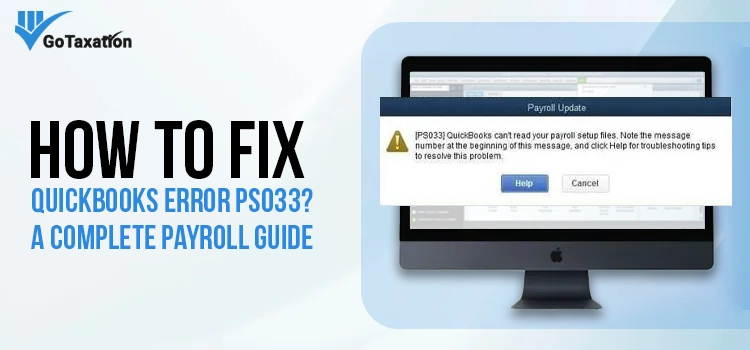
Managing the payroll operations can be a smooth process, but facing unexpected issues like QuickBooks Error PS033 can stop your business workflow immediately. This error usually occurs when your payroll setup files are damaged or unable to be read, which prevents you from getting the latest updates of the software. By following the troubleshooting methods outlined below, you can resolve these technical glitches and restore your system performance.
In this guide, we will walk you through simple, step-by-step solutions to fix the issue and get your payroll back on track quickly.
What is QuickBooks Error Code PS033?
When this error occurs, you will see a message that says “QuickBooks can’t read your payroll setup files.” This issue often arises when you attempt to open a company file or if your system lacks the necessary permissions to access specific payroll data. Essentially, QB error ps033 is preventing you from downloading vital payroll updates or managing employee information.
Common Causes of QB Error Code PS033
Several reasons can trigger this error. Identifying the root cause of the problem can help you resolve the issue much faster:
- Subscription Issues: Your QuickBooks Payroll subscription is either inactive or not yet activated.
- Damaged Files: Corruption within the CPS folder or a damaged file.
- Data Integrity: Major damage to your QuickBooks company data.
- Outdated Software: Using an old version of QuickBooks Desktop that is no longer compatible with current payroll tax tables.
- Identification Errors: An invalid or incorrect Employer Identification Number or an incorrect Service Key.
- System Conflicts: Incompatibility between your version of QuickBooks and the Windows operating system.
- Account Status: Issues with your direct deposit agreement or a deactivated payroll status.
Signs and Symptoms of QuickBooks Error PS033
Now, you have understood the possible causes of QB error code PS033. Have a look at the signs and symptoms of this fatal error code:
- On-Screen Alerts: A dialogue box with the error code PS033 appears immediately when attempting an update.
- Update Failures: Payroll tax tables fail to download or install completely.
- Access Denied: You are unable to open your company file or access the Employees tab.
- Functional Issues: Standard payroll features, such as running a pay run, become unresponsive or stop working entirely.
Easy Methods to Fix QuickBooks Payroll Update Error PS033
Before you begin, ensure you have created a backup of your company data as a standard safety measure. Use the following guide to troubleshoot and permanently remove the QuickBooks error message PS033 from your system.
Below, we have outlined tested methods to help you eliminate QB error code PS033 and get back to managing your business finances without further delay:
Method 1 – Verify and Sync Your Payroll Service Subscription
Before proceeding to fix the error, ensure your subscription is active and correctly synced within QuickBooks. A simple re-verification can often clear the QB error code PS033.
- Close all active company files and restart your computer to ensure no background processes are interfering.
- Open QuickBooks Desktop and navigate to the Employees menu. Select My Payroll Service, then click on Manage Service Key.
- In the Service Name window, confirm that your Status is listed as Active.
- Select Edit to review your service key number. If it is incorrect, enter the correct key provided with your subscription.
- On the following screen, uncheck the box that says “Open Payroll Setup,” then click Finish.
- This process causes a background sync to refresh your payroll data. Once complete, try downloading the payroll update again to check if the PS033 QuickBooks error is fixed.
Method 2 – Register and Update QuickBooks Desktop
An unregistered or outdated version of QuickBooks can often cause communication errors with the payroll server. Ensuring your software is properly activated and running on the latest release is essential for a smooth update process.
- Open QuickBooks and press the F2 key on your keyboard to launch the Product Information window.
- Look at the section next to your license number. It should clearly state “Activated.”
- If it does not say Activated, you must follow the on-screen prompts to register your software before proceeding. This is an important step for fixing the payroll update error PS033.
- Once registered, go to the Help menu and select Update QuickBooks Desktop. Ensure you have all the latest security patches and software improvements installed.
- After updating the main software, attempt to download the payroll tax table update once more.
Method 3 – Configure Windows Defender and Run Quick Fix My Program
If the previous steps haven’t worked, your security software might be blocking the update, or a background process may be stopped. Using the QuickBooks Tool Hub is the most effective way to clear these technical issues.
- Fully exit your company file and shut down QuickBooks Desktop.
- Temporarily disable your Windows Defender Antivirus or add an exclusion for QuickBooks. This ensures your firewall doesn’t interfere with the payroll tax table download.
- Open the Tool Hub and navigate to the Program Problems tab on the left-hand menu.
- Click on “Quick Fix My Program.” This tool will rapidly scan your software and repair any minor issues affecting the software’s performance.
- Once the tool finishes, reopen QuickBooks. Ensure the software is updated to the latest release, then attempt to download and install the latest payroll tax tables.
Method 4 – Rename the QuickBooks CPS Folder
If you are still seeing the PS033 error in QuickBooks Desktop, the issue may arise in a damaged folder of your system directories. The CPS folder stores vital payroll data, and if it is corrupted, QuickBooks can not process updates. But renaming the folder forces the software to create a new one.
- Ensure the application and all background processes are completely shut down.
- Open your File Explorer and go to the following location: C:\Program Files\Intuit\QuickBooks 20XX\Components\Payroll\CPS
- Right-click the CPS folder and select Rename. Change the folder name to a new name.
- Open QuickBooks Desktop again. Navigate to the Employees menu and select Get Payroll Updates.
- Click Update to download the latest payroll tax tables. QuickBooks will automatically generate a fresh CPS folder, which can resolve the QuickBooks payroll error PS033.
Method 5 – Configure User Account Control Settings
Windows User Account Control is a security feature that is created for preventing unauthorized changes in your operating system. By adjusting these settings, you can resolve the issue you are facing:
- Click the Start menu, type Control Panel into the search bar, and select the application to open it.
- In the Control Panel, select User Accounts. You may need to click it again on the following screen.
- Click the link that says Change User Account Control settings.
- Move the vertical slider down to Never Notify and click OK. This will temporarily deactivate UAC restrictions.
- Reboot your computer to apply the changes. Open QuickBooks and attempt to download the payroll update error PS033 fix.
- Once the payroll update is successful, it is highly recommended to repeat these steps and move the slider back to Always Notify to maintain your system security.
After applying the above-mentioned methods, you can easily fix the QuickBooks desktop error PS033 and get back to work.
In A Nutshell!
In this detailed blog, we have mentioned the possible causes and symptoms of QuickBooks Error PS033. By following the above outlined simple solutions, you can easily troubleshoot the problem and get your accounting back on track. Resolving this error requires updating QuickBooks, renaming the CPS folder, and validating service keys to restore uninterrupted payroll functionality.
Frequently Asked Questions!
Question 1 – What is QuickBooks Error PS033?
QuickBooks PS033 error occurs when the software can not read payroll setup files, usually preventing tax table updates.
Question 2 – How to fix QuickBooks payroll update error PS038?
To fix the PS033 QuickBooks Error, update QuickBooks to the latest release, ensure an active subscription, and configure the user account control settings.
Question 3 – What are the common causes of error code PS033 in QuickBooks?
QuickBooks Error PS033 is primarily caused by a corrupted, damaged, or tangled CPS folder that is preventing tax table updates.
Question 4 – What are the symptoms of a PS033 error in QuickBooks?
The primary symptom is that QuickBooks can not read your payroll setup files. It indicates that you have stored corrupted, damaged, or missing payroll files that are preventing tax table updates.
Question 5 – How do I fix “QuickBooks can’t read your payroll setup files” (Error PS033)?
Follow the above outlined solutions to smoothly resolve the PS033 error and get back your business core accounting.